
The Sell Ltd extension reads the site you're on, finds its UK company number in the footer or legal pages, and instantly shows filed financials, directors, ownership and filings — with a link straight into the full dossier.
Scans the page, footer, terms, privacy and contact pages for a UK company number — and falls back to a register name search when there isn't one.
Turnover, profit, total assets, net worth, cash and employees across the last three filed years — straight from filed accounts.
Active directors, persons with significant control, outstanding charges, insolvency history and recent filings.
Ask Chris — our AI deal adviser — anything about the company you're looking at: financial health, valuation range, buyer angle and red flags, grounded in its filings.
Live typeahead for any UK company or director, plus one-click saving into watchlists that sync straight to your Sell Ltd account.
The extension never changes the sites you visit and only sends the company details it detects. Results are cached locally for 24 hours.
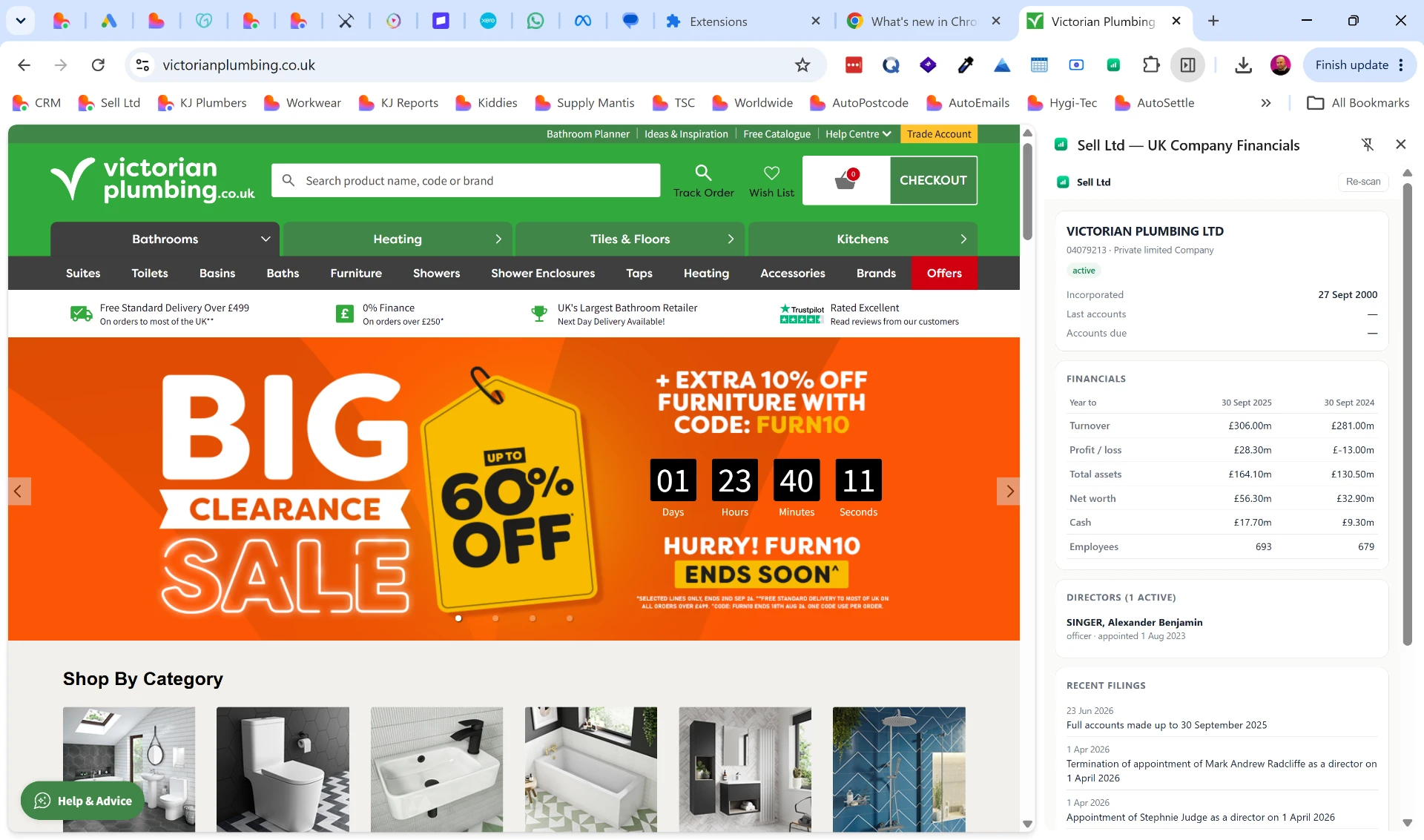
The side panel in action on a real UK ecommerce site — Victorian Plumbing Ltd (04079213).
Loading it unpacked is for you and your team. When you're ready for the public, this is the full process.
Go to the Chrome Web Store Developer Dashboard and sign in with the Google account you want to own the listing. There is a one-off $5 registration fee.
You'll need: a 128×128 icon (included in the ZIP), at least one 1280×800 screenshot of the panel in action, a short description (132 characters) and a detailed description.
Chrome requires a public privacy policy URL because the extension reads page content. Point it at sellltd.co.uk/privacy and state that page text is used only to detect a company number and is not stored.
Justify each permission: activeTab and host access to read the page you're on, storage for the 24-hour cache. Tick that you do not sell user data.
Create a new item, upload the ZIP, fill in the listing, choose Public or Unlisted visibility, then submit for review. First reviews usually take a few days.
Bump the "version" in manifest.json (e.g. 1.0.1), re-zip, and upload it as a new package on the same item. Updates roll out to installed users automatically.